Veeam Kasten has significantly simplified the Kasten Disaster Recovery procedure in recent versions. Now you are able to setup and perform Kasten DR through the WebUI and not only the command line.
In my first post of the series I walked through Kasten DR setup guide
Today we will perform a complete Kasten Recovery to a new Kubernetes Cluster.
Prerequisites and Setup
Kasten Disaster Recovery Prerequisites
A Kubernetes cluster with a vanilla Veeam Kasten instance installed.
Your cluster ID and secret passphrase in order to perform this procedure.
Access to your Location Profile and your access key and secret key for your bucket
Fresh Kasten Instance
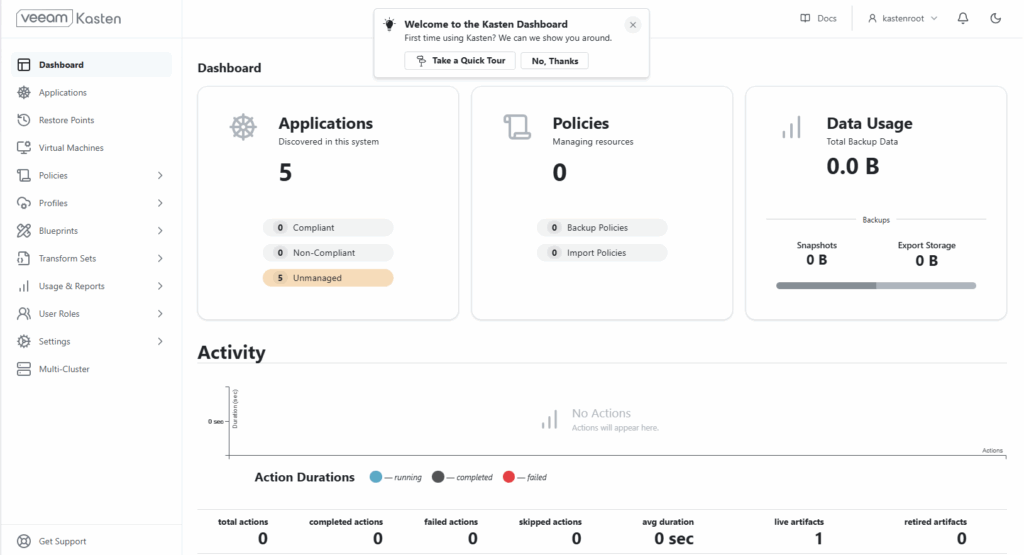
First our task will be to spin up a new cluster and install a vanilla version of Veeam Kasten. For faster recovery I would recommend having this cluster on standby and ready to go at all times. This would also make it easier to perform regular DR testing which is essential for all modern production workloads in order to guarantee availability.
I have my new cluster with fresh Veeam Kasten installation ready to go on my k3s02 single node k3s cluster.
Setting Up Location Profiles for Kasten DR
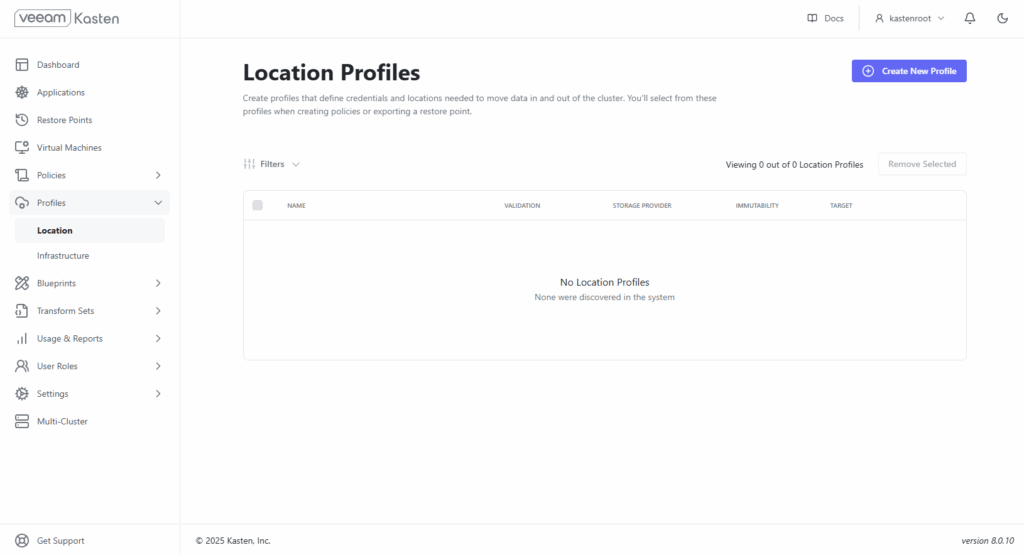
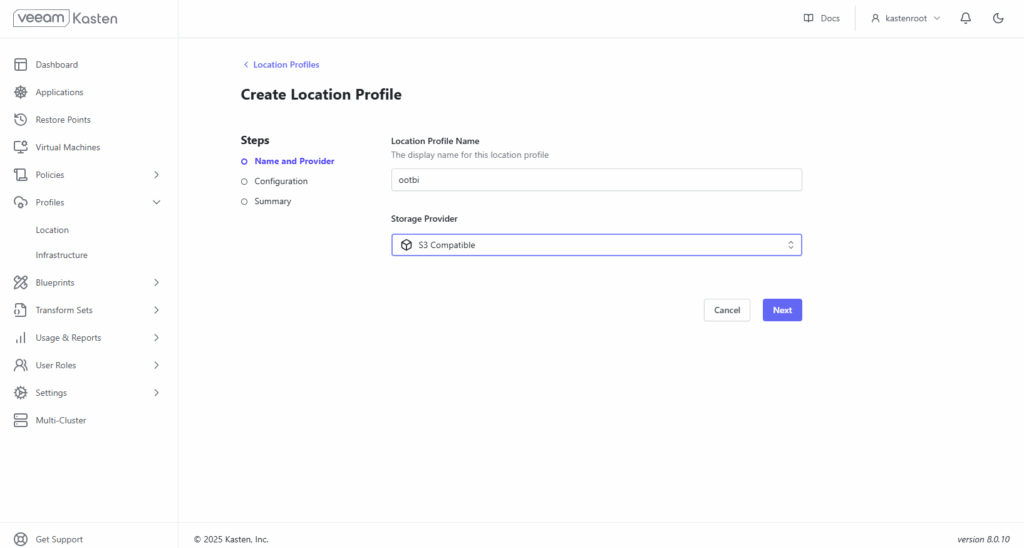
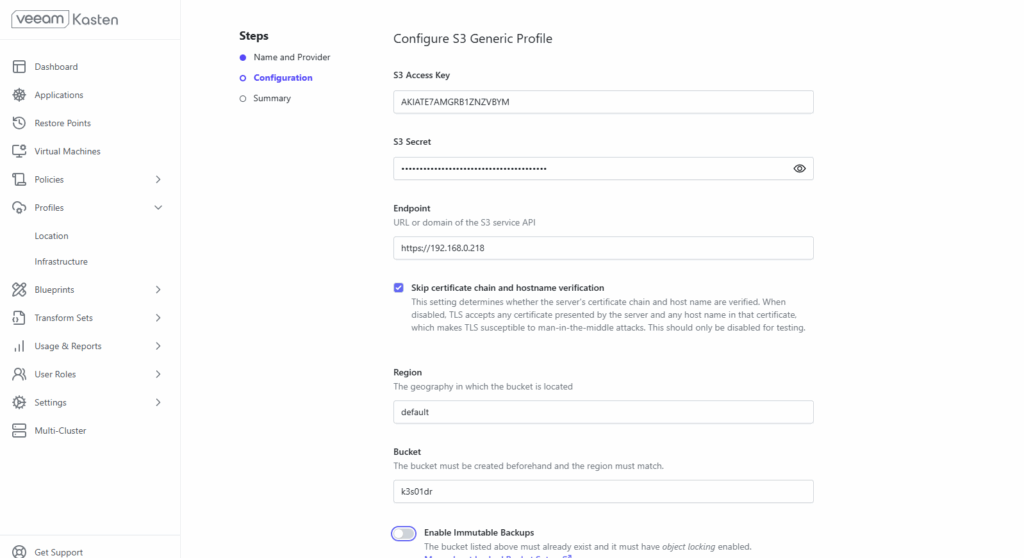
Next, the first thing we need to do is to create a location profile. This location profile will be the S3 bucket where our production cluster on k3s01 stores the exported snapshots
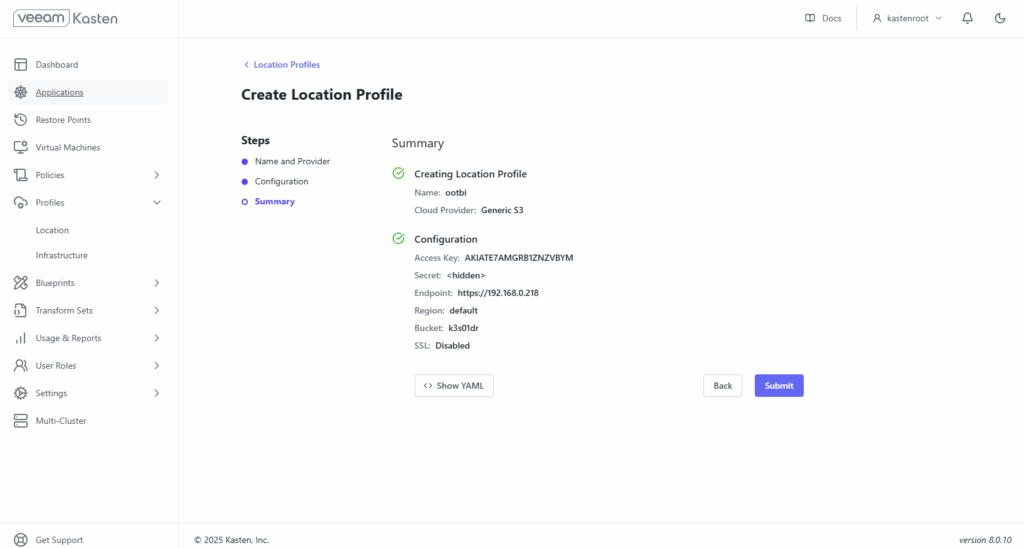
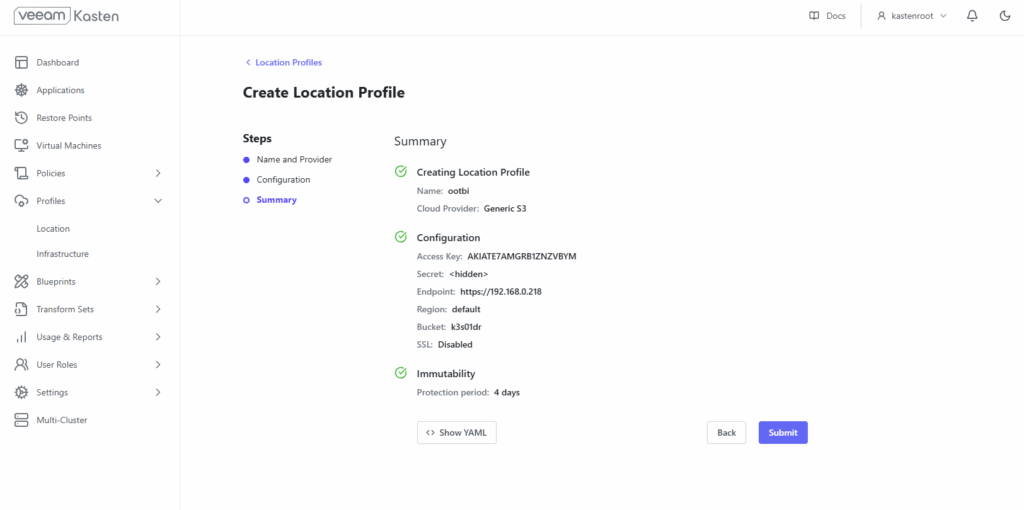
Performing the Kasten Disaster Recovery Process
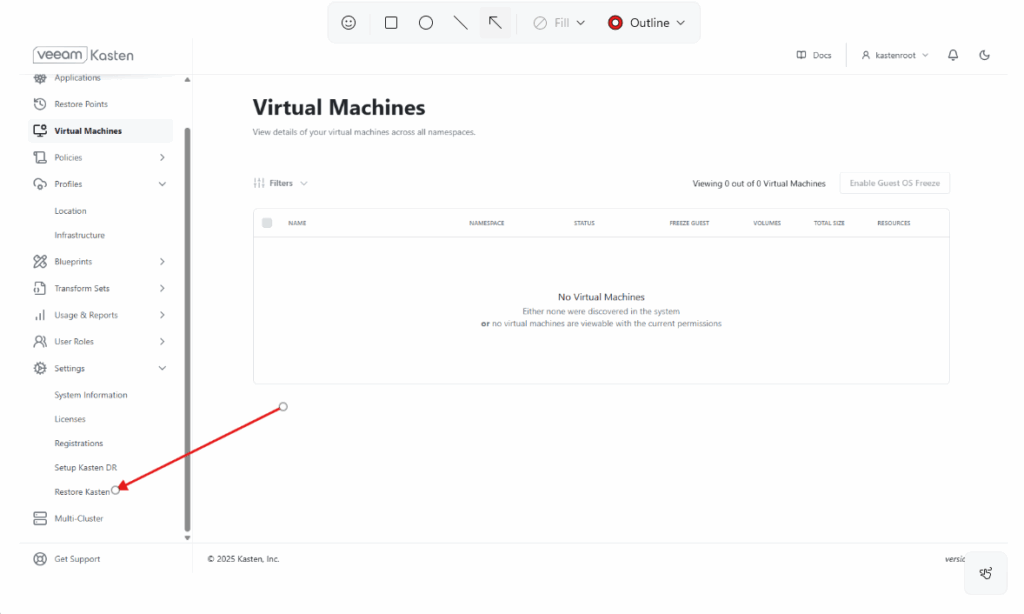
Now that the location profile is ready, we head over to Settings and Restore Kasten in the left side panel.
It is here that we need to choose our Location Profile and provide the Cluster ID and Passphrase
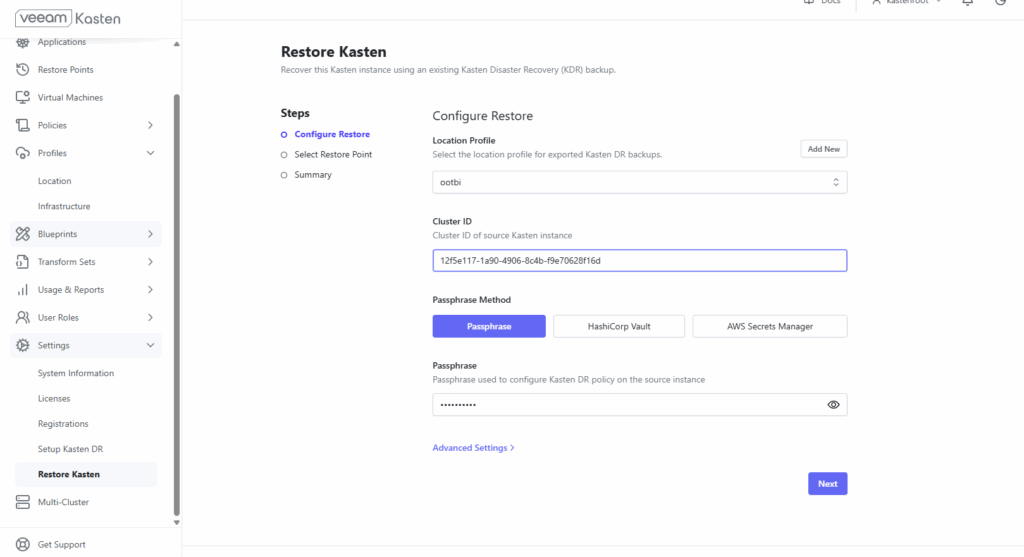
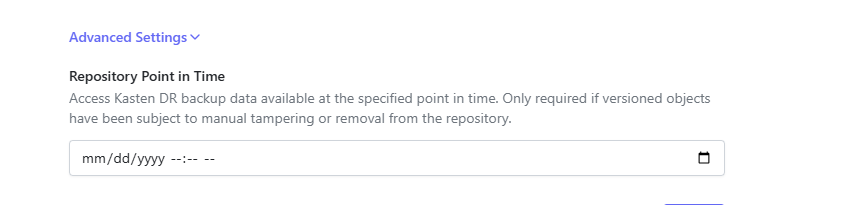
Additionally the advanced Settings at the bottom of the page will allow you to choose a point in time so depending on your particular situation choose accordingly.
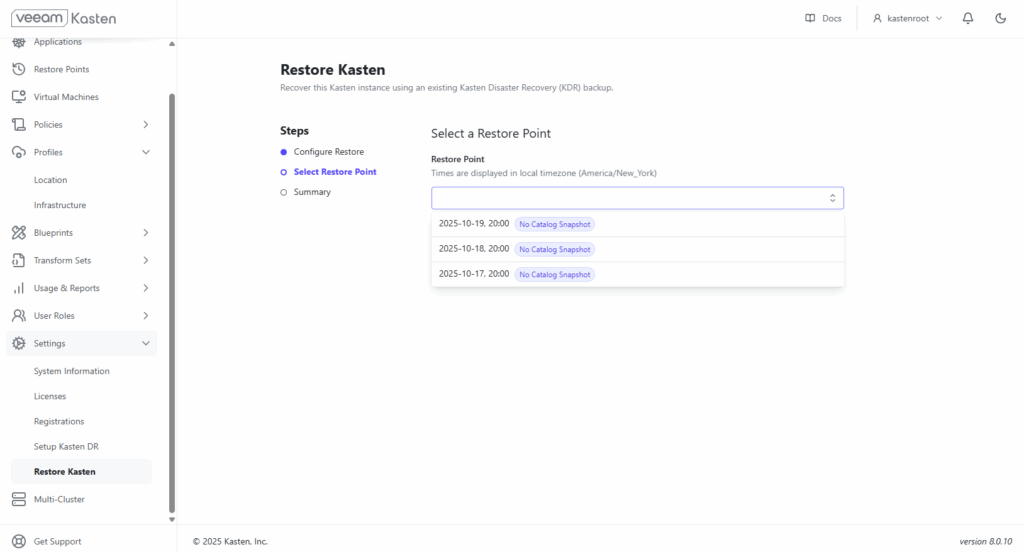
Following successful validation, we can now choose a restore point:
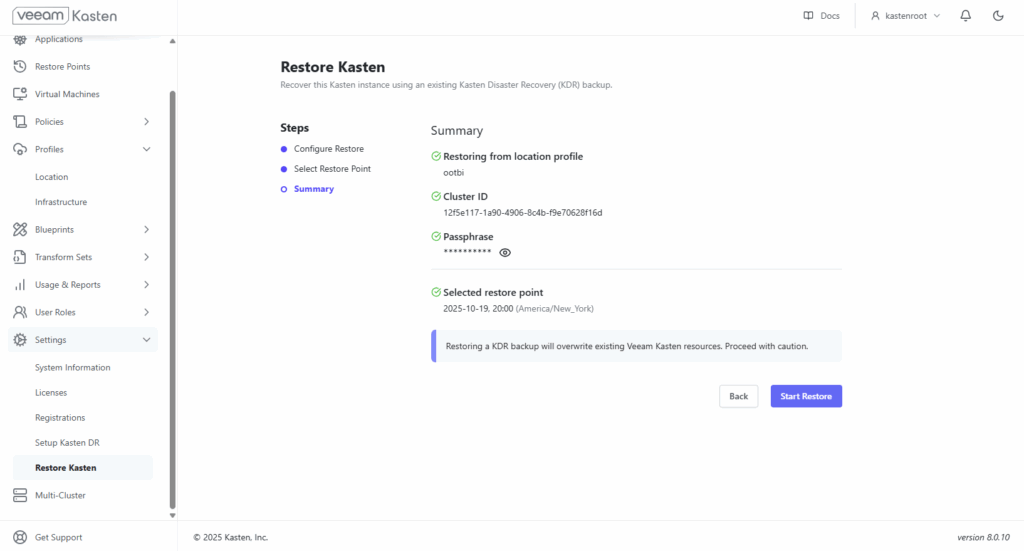
Finally, with our restore point selected we are now ready to start the restore.
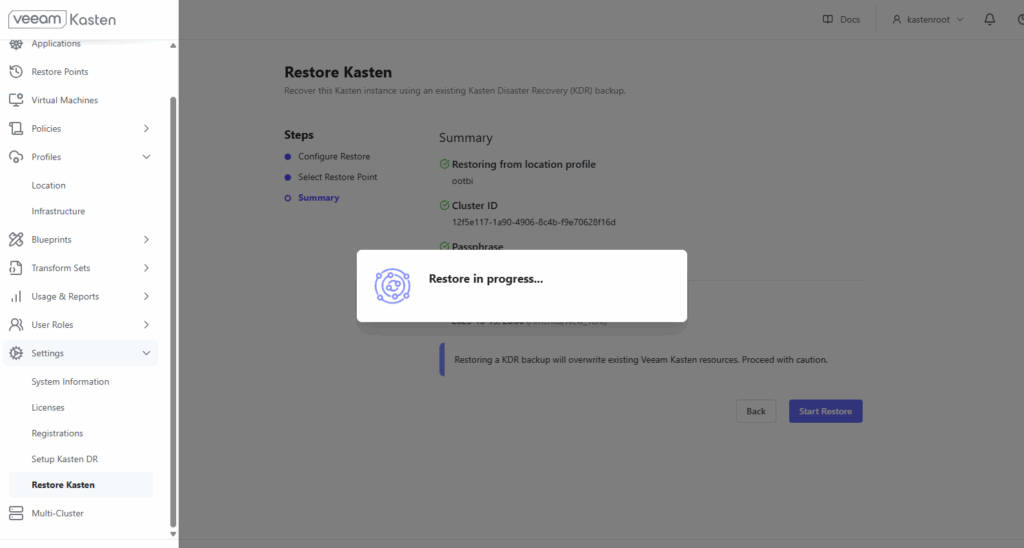
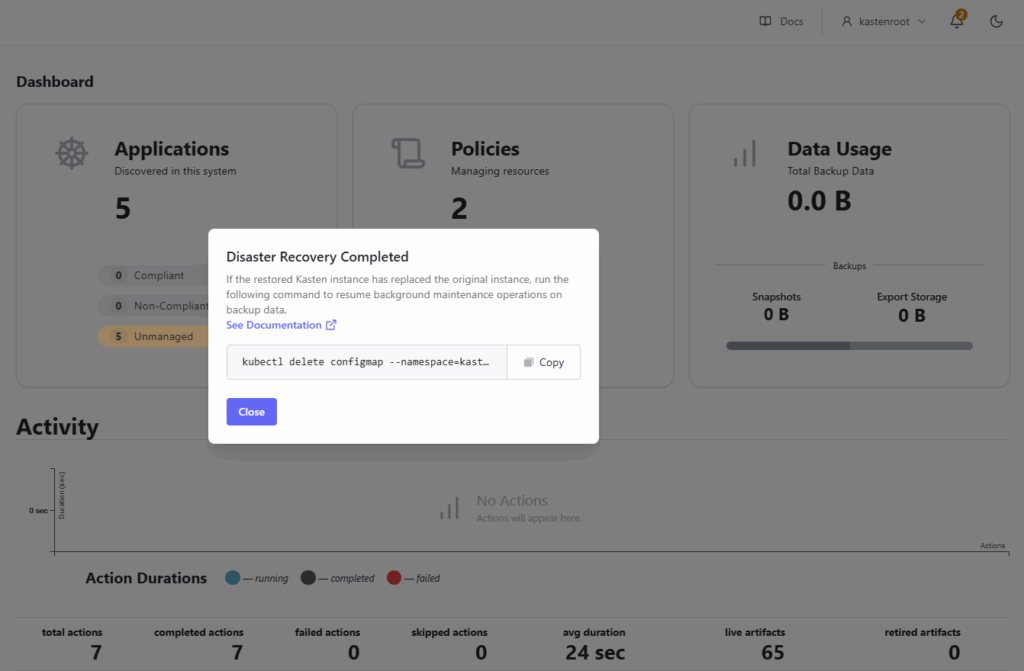
However, if this had been a real emergency and you had lost the original cluster then to continue normal background maintenance operations on this new instance you need to type the following command in the cli.
kubectl delete configmap --namespace=kasten-io k10-dr-remove-to-get-ownershipCode language: JavaScript (javascript)Restoring Individual Workloads After Kasten DR
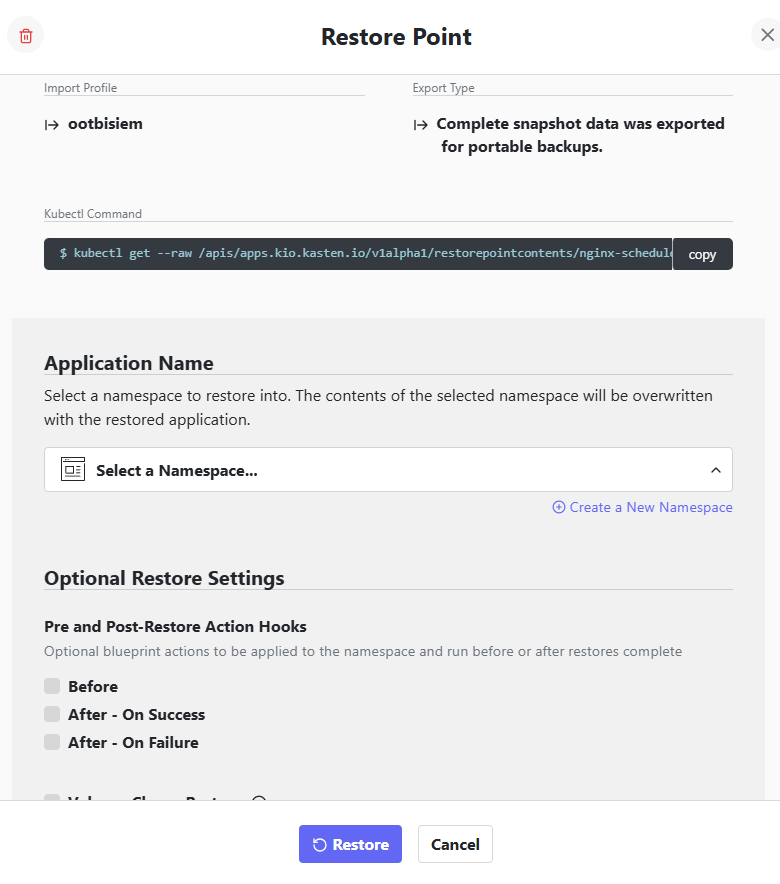
On the left hand menu we choose “Restore Points” and are presented with the list of about backed up workloads
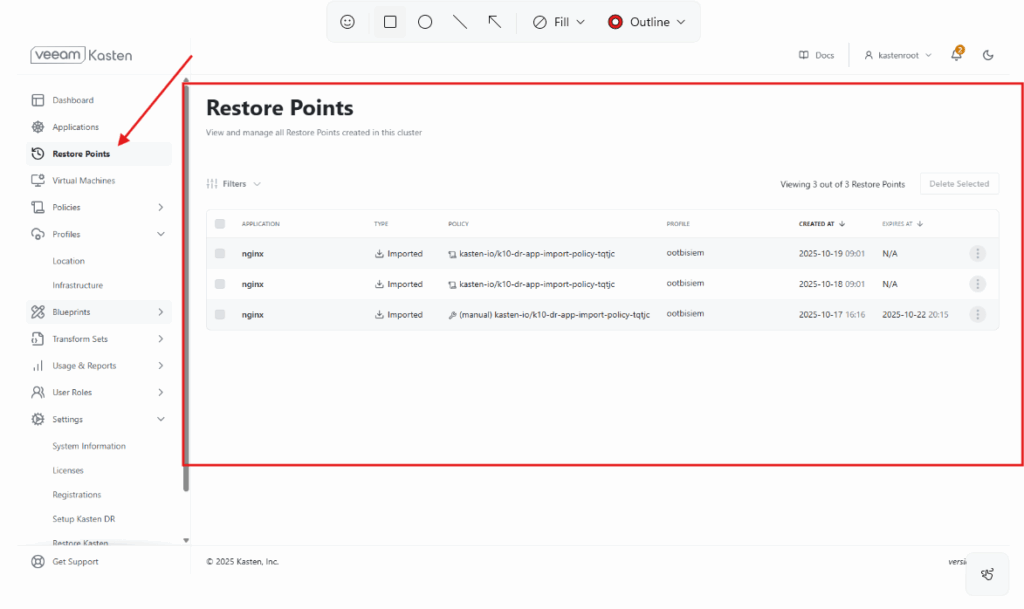
We will now restore a workload in the new cluster:
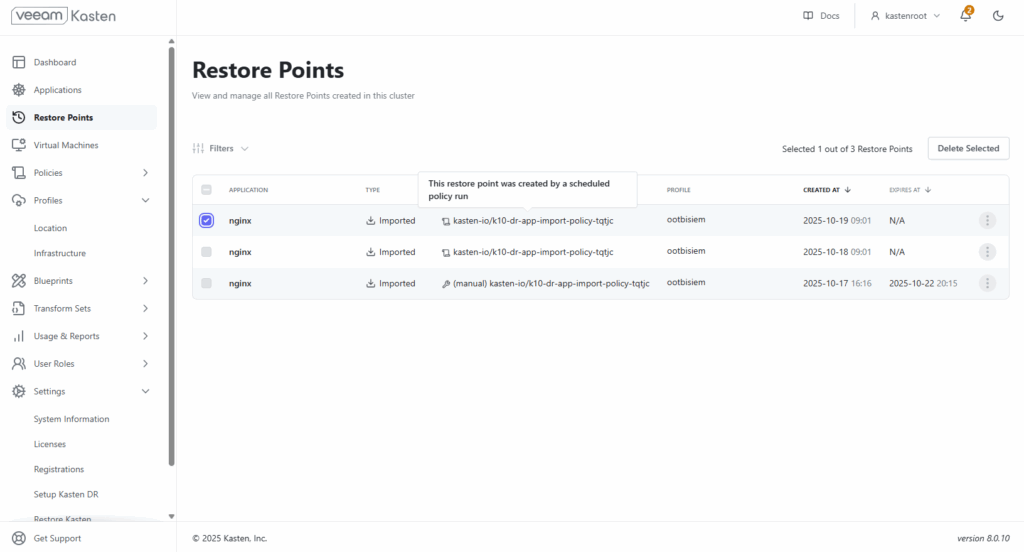
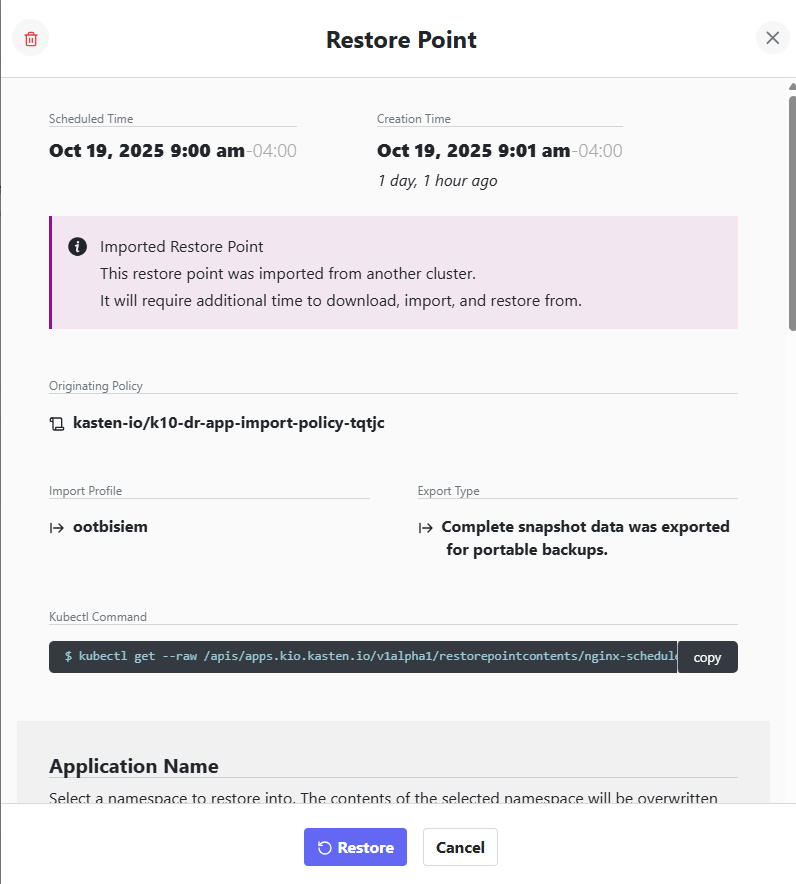
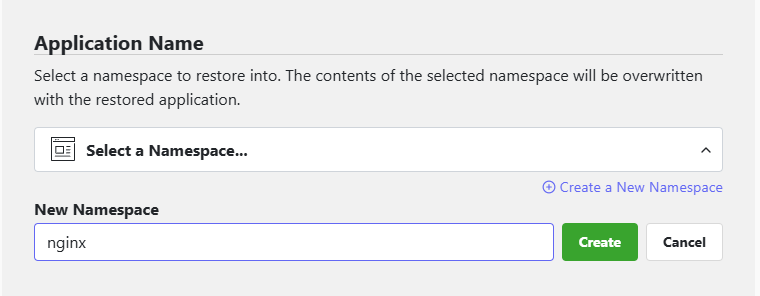
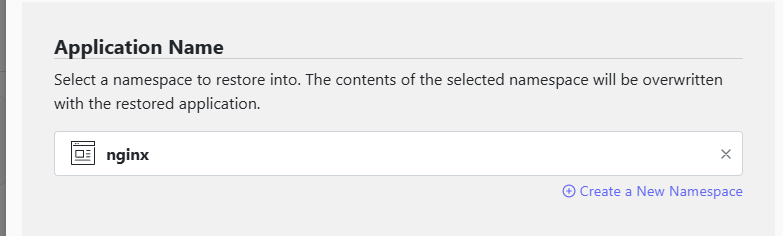
We can recreate the names space in the restore dialogue.
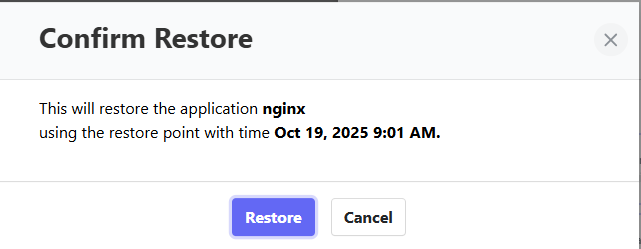
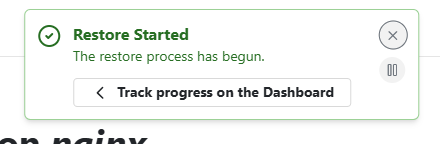
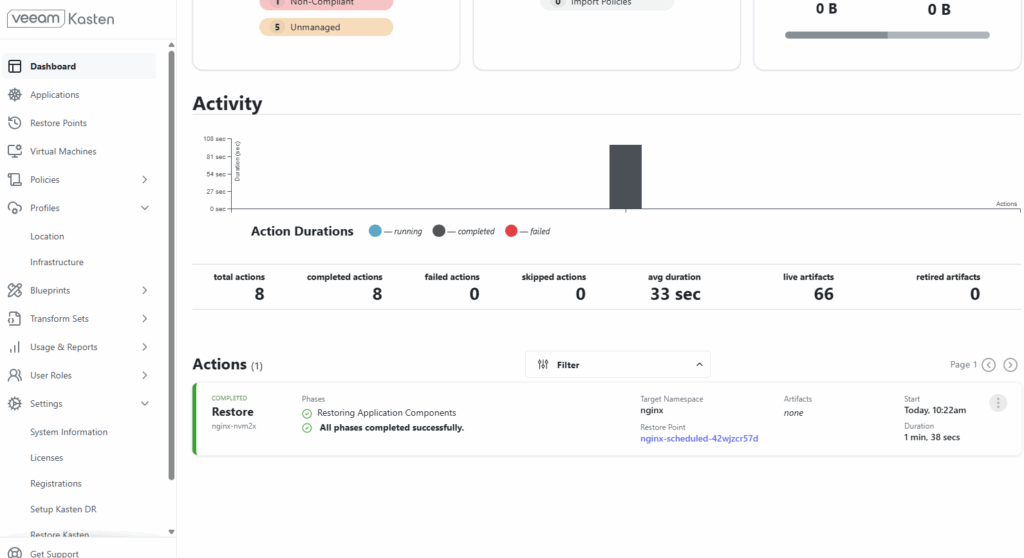
Meanwhile, we can track the restore progress in the Veeam Kasten Dashboard
Kubernetes cluster restoration progress screen
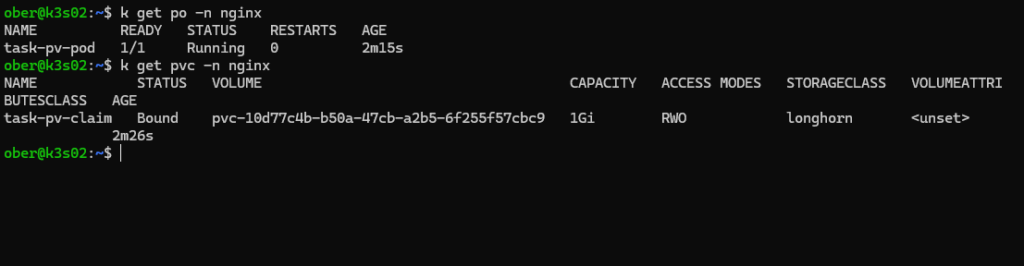
We can check out our running pod with persistent storage in the cli.
Most importantly always remember to check the Veeam Kasten documentation on a regular basis for updates.
CONCLUSION
Veeam Kasten is the leader in Kubernetes Data Protection. It combines a intuitive user experience with powerful tools to ensure your availability of your workloads.
Finally, Kubernetes can be complicated so the folks at Veeam Kasten want to make the backups easy and with this new DR procedure they have done just that!